In my previous post I outlined the process of retrieving a diff for a PR in GitHub and passing it to an LLM to generate detailed test cases based on the pull request. Shortly afterward, I had the idea of bundling the entire end-to-end process into a Google Chrome extension, allowing the process to be completed with a few clicks of a button.
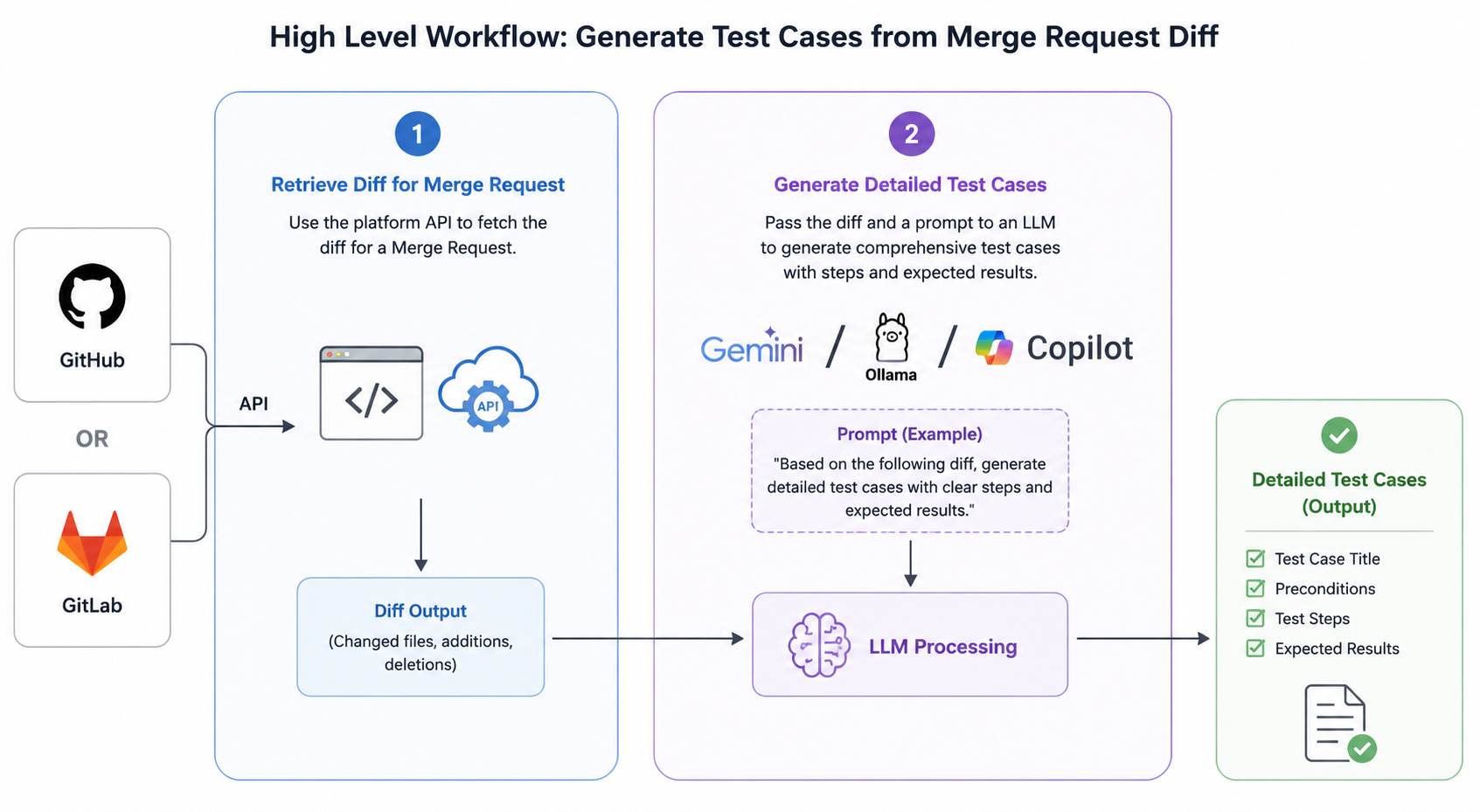
For reference, This was my thought process for generating detailed test cases using an LLM/AI, based on a Diff from a pull request in Github.
A Bit of History
A few years ago, while working as an SDET at a healthcare company, I built a Chrome extension used internally by Quality Engineers and Developers across teams. It solved the lengthy, cumbersome process of generating internal serial numbers — required for testing purchase and product registration workflows in lower environments. By leveraging a handful of internal APIs, the tool reduced that process to two clicks and under 15 seconds.
Fast forward to present day
Since the goal of this chrome extension is to deliver detailed test cases with preconditions and expected results, I needed to figure out how this should be rendered in the UI. Chome extensions do not have much real estate in the UI, so rendering large amounts of data in a manner that can be digested by the user is unrealistic, in my opinion.
I decided the best course of action was to allow the user to download the test cases once Gemini AI returned a response. This presents another challenge - How should I organize the data in the downloaded file? I immediately thought of excel, but what if the user does not have this installed on their machine? Sure - there are alternatives, but I did not want the user to jump through unnecessary hoops.
Everyone has a web browser installed on their machine, regardless of their operating system. With this in mind, I decided to format the response returned by Gemini AI to build an HTML document that renders a table with the expected test cases. I leveraged "dataTables" via a CDN to do the heavy lifting in regards to formatting, which was a game changer.
Another challenge - due to the limited space with in the UI - was figuring out how to let the user know a request was in progress. Since I am using Bootstrap (v5.3.3), I could simply use a spinner while a request is in progress, but where should this be rendered? I decided the best course of action was to reuse the existing elements in the UI and overwrite them depending on the action the tool was performing. This allowed me to save space and keep the UI a bit cleaner than some of the alternatives I had previously explored.
Chrome Extension Demo
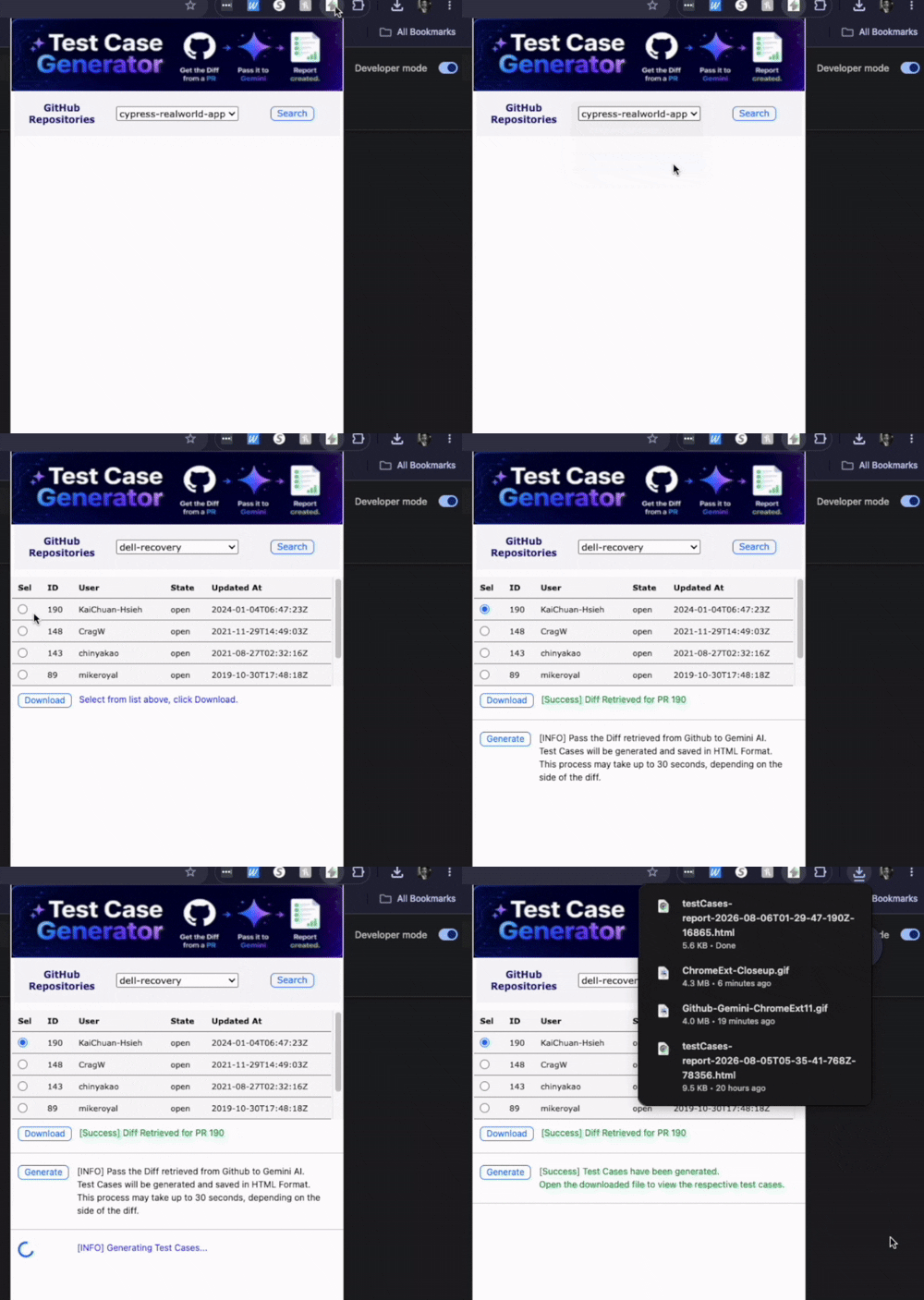
I wanted the workflow to be simple and straight forward. This is the end result:
- User clicks on the Chrome extension icon in the browser.
- User selects the desired repository in Github
- Pull Requests with an open status are returned.
- User selects Pull Request and downloads the Diff.
- User clicks on Generate button, which sends the Diff to Gemini AI
- The OS Native download window automatically appears, allowing the user to save the test case results.
What happening under the hood:
- The list of Github repositories displayed in the dropdown menu are retrieved from a local json file.
- This makes the process of adding/removing effortless as the chrome extension imports the list on load.
- Only pull requests with a status of "Open" are retrieved.
- This was intentional, as the purpose of the tool is to generate test cases for code that is to be tested.
- The diff is downloaded, but not displayed in the UI, as I believe this offers no value to the user.
- The current Gemini Model used is "gemini-3.5-flash".
- This value is saved as a string and can easily be modified as needed to access a desired model if needed
Viewing the Downloaded Test Cases
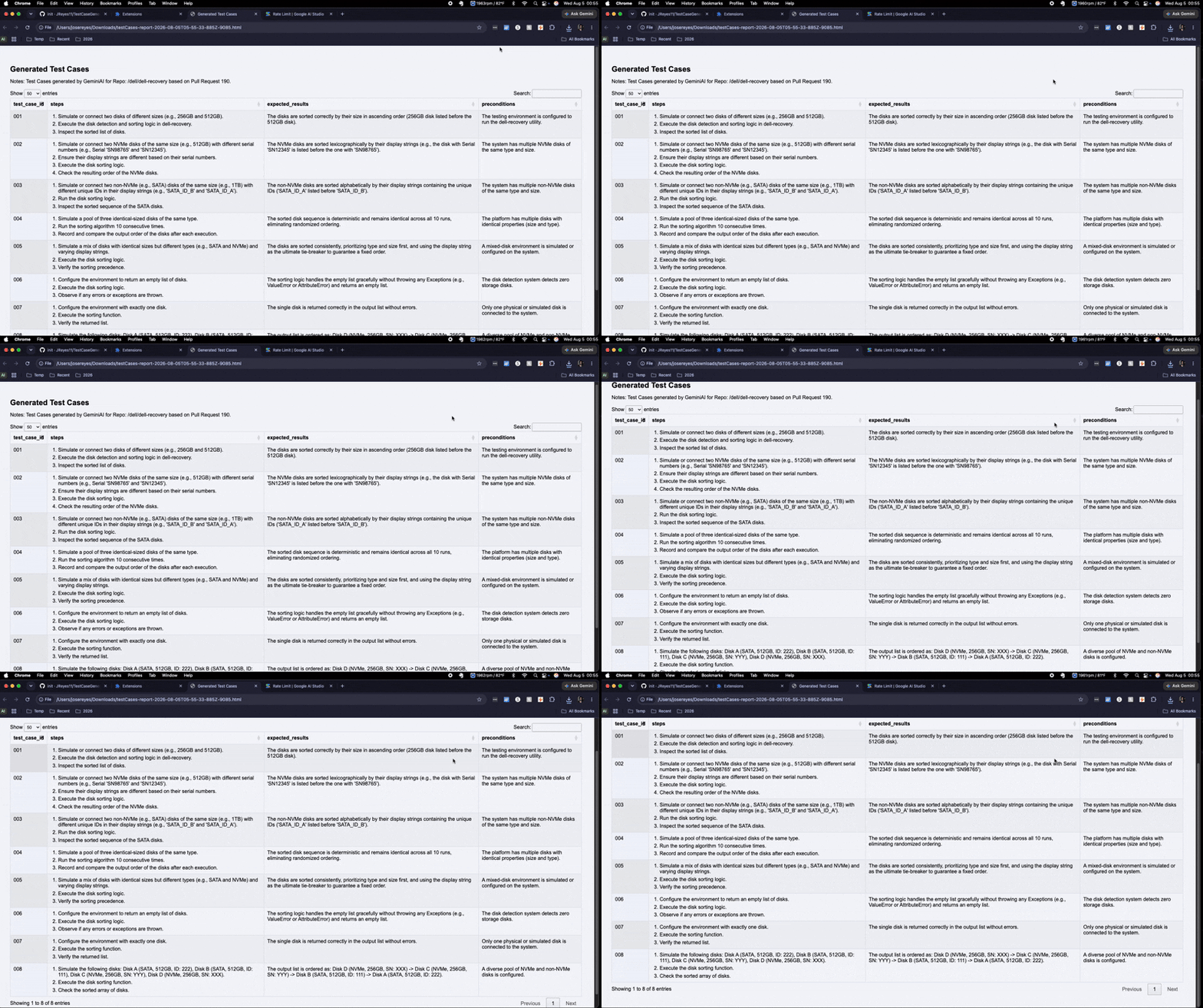
Once the file has been downloaded, the user can open the html file to view the generated test cases.
For reference, I decided to include the Github repository and Pull Request number at the top of the page. Since I am using "dataTables", the "search" text field was an option I thought would be useful to include.
The Vetting Process
As noted in my previous post, it's important to vet the quality and relevance of the generated test cases.
AI can make mistakes - and sometimes create scenarios that do not add value and/or are irrelevant to the task at hand. Be sure to review the generated test scenarios thoroughly as opposed to trusting them blindly. This process is intended to assist - as opposed to replacing our keen sense of quality.
Conclusion
I can honestly say I am happy with how this project turned out.
My goal was to build something that took the stress out of analyzing a pull request to determine areas of focus. There were a number of decisions I had to make along the way - and a number of good alternatives I passed on. I can see myself revisiting this project again in the near future... perhaps introducing an option that allows the user to select from various AI models.
I hope you have enjoyed this post.
Back to all posts